Amethyst Manual - Chapter 10: Group Chats
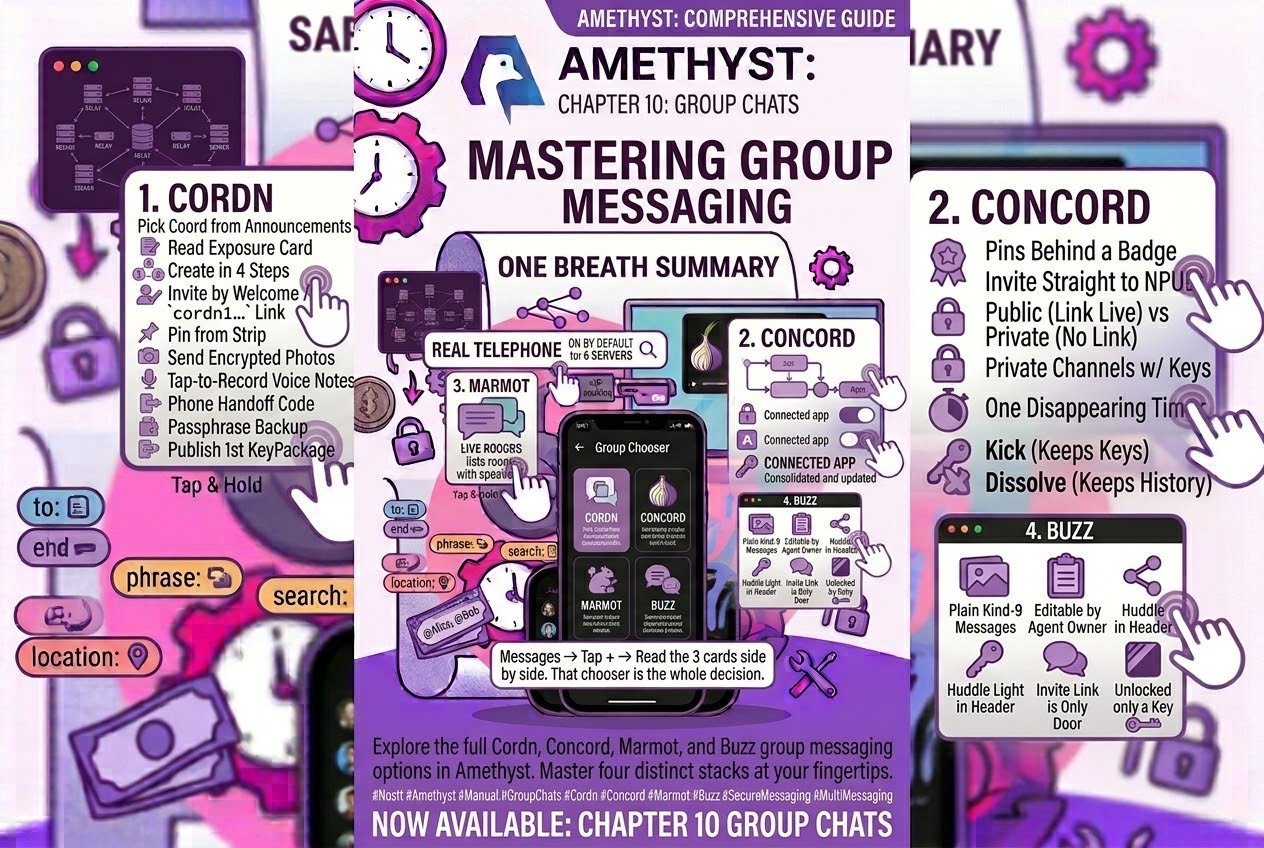
- Four ways to talk in private
Four ways to talk in private
Amethyst has four ways to put a group of people in a room outsiders cannot read. Three are end-to-end encrypted and differ in who carries the messages; the fourth is a members-only workspace that is deliberately not encrypted. All four share the Messages inbox, and three are explained side by side in the Start a conversation chooser behind the + on Messages:
- Marmot — group chat on MLS, the IETF messaging-security standard, carried by ordinary relays. Anyone on another Marmot client can be in the group; you invite people who have published a KeyPackage, and they reach you through your KeyPackage relay list.
- Cordn (since v1.17.0) — the same MLS engine, but the messages are ordered and stored by a coordinator you pick instead of by relays. The card says “Encrypted groups on a coordinator you pick”, chip Coordinated, and lists one con: “Coordinator sees who talks, and when”. You invite anyone whose KeyPackage your coordinator holds; anyone else can ask to join from a
cordn1…link. - Concord — a Discord-shaped community: channels, roles, invite links, moderation, encrypted throughout. Reach people with an invite link or, since v1.17.0, by sending the keys straight to an npub.
- Buzz — not on the chooser. A workspace where humans and AI agents share one relay; the invite link is the entrance. Messages are signed but not encrypted, so the relay can search and audit them; what keeps a Buzz room private is the relay declining to serve non-members.
What the carrier learns is the real difference. A Marmot or Concord relay holds ciphertext. A Cordn coordinator cannot read the messages either, but it knows the membership under your real account, sees each message arrive under a throwaway sender key, and — being one operator — holds the whole history. Post 7, “What’s private, and how to keep it that way”, has the full encryption map; this post is about the rooms.
Cordn: a group on a coordinator you choose
Cordn rows sit in Messages like any other conversation, with the coordinator’s name where other rows show a type pill. The switch for the kind is Settings → Messages → Cordn groups, on by default. The dedicated list is Drawer → Cordn Groups (after Marmot Groups), pinnable from Settings → Bottom bar → Chats & Groups; it groups rooms per coordinator with a health row.
Creating a group in four steps
Cordn Groups → + (or Messages → + → Create Cordn group) is one form:
- Name it — name required, description optional.
- Who is in it — opens the members screen. Add someone searches by name, npub or NIP-05; a key badge means a coordinator you use holds their KeyPackage. Each member shows “Reachable on N coordinators”, “Not reachable on any coordinator you use” or “Not checked”, plus an Admin toggle.
- Where it lives — the coordinator that will be used and its reach line; Change expands the list.
- Who can add and remove — Everyone can add and remove is off by default, making you and your picks the admins. On, the group is egalitarian permanently: any member can name admins later, which ends that.
Create group (or Create and invite N) enables once you have a name and a coordinator that resolves. Creating is local work, so it succeeds even while the coordinator is down. Invites go in one commit to every roster member the coordinator holds a KeyPackage for; if all were reachable you land in the room, otherwise The group exists lists who is waiting, who had no key there (with Send a link) and what failed.
Finding a coordinator, and what it can see
Expanded, step 3 lists your coordinators as radio rows. Find coordinators reads CEP-6 announcements from your outbox relays — relays only, never a coordinator. The best-reaching one is selected until you tap one, and the summary reads Reaches everybody, Reaches X of Y — the rest would be left out or Not checked — picking it will ask.
Under the chosen coordinator sits the metadata-exposure card. Its three fixed rows are the trade-off — Message contents: Unreadable; Who is in the group: Tied to your real account; Who sends what: Under a throwaway key — followed by the notes that apply (it already carries other groups of yours; one operator holds the history; sizes are unpadded; a published KeyPackage is a signed record under your key) and a line on how this differs from Marmot.
Invitations and cordn1… links
Invitations are MLS Welcomes left at a coordinator. Cordn Groups → inbox icon (or Messages → + → Cordn card → Review invitations) asks every open coordinator when it opens and on refresh. Each card shows the group and its coordinator, with Join or Decline — declining is permanent. There is no badge or count anywhere, since every check is a call to each coordinator, and a card never names who invited you — a Welcome does not carry that.
The other way in is a link. Group info → Share this group shows a QR of the group reference and Copy link. The cordn1… text names the group id and the coordinator serving it; holding it makes nobody a member — it lets them ask. The reader is Settings → Cordn → Inspect a group link, with Inspect, Paste, Scan and Clear; the app’s main QR scanner does not recognise cordn1… codes, so use this screen’s Scan. Inspecting joins nothing; Ask to join this group publishes a fresh KeyPackage under your key and files a join request — permanent whether or not anyone answers. A link that names no coordinator cannot be followed on its own.
The chat room
The top bar of a Cordn room is back, the title (faces, name, “N members”) and a group-add icon; both open Group info. That is the whole bar: a Cordn room has no ⋮ menu, so no mute, no search and no leave — group-level actions live in Group info.
Gestures: long-press a bubble for the action sheet, double-tap to react with your first configured reaction (👍 if none), swipe toward the centre to reply, tap the timestamp for Message details; the green tick on your own bubbles means the coordinator accepted the message. The sheet is your palette from Settings → Reactions, then Reply, Pin/Unpin, Edit, Delete, and under More, Copy text and Share. Edit and Delete are for your own messages. Reaction chips add on tap and show who reacted on long-press; a second tap on your own chip adds another reaction rather than removing it.
The composer is the Message field with gallery and mic on the left. A failed send shows as a red line above the field and puts your draft, reply or edit back. Two things to know before relying on a Cordn room: the app raises no notifications for incoming Cordn messages, and because messages never enter the event cache they appear in neither search nor Notifications.
Members, admins and join requests
Group info lists name, description, members with admin badges, the coordinator row with its (i), and Share this group. You can administer when the admin list is empty or you are on it; then you also get the pencil (Edit details), an Add someone field that invites on the person-add button, and a red remove button on every member but yourself. Admins also see Requests to join: tap Check for requests — fetched on tap, never polled — and each request offers Accept and Decline. What Group info does not have is a Leave button: Cordn has no self-removal, so leaving means an admin removing you.
Pins
Any member can pin. Pins live in a strip above the conversation — pin icon, “Author · text”, an n/N counter with ◀ ▶, and a list icon opening Pinned messages, where each entry shows “Pinned by
Encrypted attachments and voice notes
The gallery icon, a GIF keyboard or a pasted image opens the shared chat upload dialog — caption, quality slider, strip-metadata switch, server picker, but no sensitive-content switch, since a Cordn message has nowhere to carry it. Bytes are encrypted per file, put on the chosen Blossom server and sent as one message with the caption. The picker allows multi-select, but one dialog pass sends one item.
The mic is tap-to-toggle: the first tap asks for the microphone permission, the next starts recording (the icon becomes a red Stop), another tap stops. The recording lands in the preview above the field and the send button sends it, with any text as the caption.
Moving to a new phone
Group state is MLS state, so it moves by handoff. Settings → Cordn → Move to a new phone has two boxes. Move off this phone → Start the handoff uploads an encrypted snapshot to your default media server and shows a QR plus a selectable cordndev1… code — only a pointer; the keys never travel in it. On the new phone, Take over from another phone → Scan the code (or paste) then Bring the groups here replaces that device’s Cordn groups. The old phone stops syncing and refuses to write until Take this device back — advised only if the new phone has not started sending. The snapshot imports only into the same account.
Backup and restore
Settings → Cordn → Backup and restore has one passphrase field governing both buttons; neither enables until it is filled, and there is no unencrypted export. Export writes cordn-backup.bin through the system “create document” picker. Restore picks a file and confirms that every Cordn group on this device will be removed and replaced — and asks you not to restore onto a second phone while the first is still in use. It is a replace, never a merge.
The key-package pool
A KeyPackage is what lets a coordinator leave you a Welcome, and Amethyst never publishes the first one for you: it is an explicit act, either Ask to join on a link or Settings → Cordn → Key packages. That screen shows, per coordinator, how many single-use packages you have published and whether a last-resort one exists, with Publish one, Publish last-resort (disabled once one exists) and a red Withdraw all. Once you have published on a coordinator, each session open tops the pool back up to five single-use packages plus one last-resort.
Settings → Cordn
All of it hangs off Settings → Cordn: “The coordinator” (Coordinators, Key packages, Inspect a group link) and “This device” (Backup and restore, Move to a new phone). Coordinators shows a card per coordinator with a health line, its relays and Ask who it is — one handshake showing what the coordinator says it is; its public key is the only thing that identifies it. The card’s ⋮ holds Remove, which closes the session but keeps the groups on disk (adding it back brings them back), and red Purge, which deletes the key material, after which those groups are re-enterable only by a fresh invitation.
Concord in 1.17
Channels, roles, invite links, threaded replies, encrypted images and moderation were already there; this is what 1.17 adds. The community menu (⋮ on the channel list) now reads Invite by npub…, Invite links…, Leave community, Dissolve community.
Pins
A channel’s pins are a push-pin with a count badge at the top right of the header, hidden while nothing is pinned; tapping it opens Pinned messages, and tapping a pin whose message you hold jumps to it. Pinning is long-press a message → More actions → Pin message / Unpin message, for the owner or a pin-role holder who also holds the control key; the cap is 25. Pinning a message on a disappearing timer asks Pin a disappearing message?, since the pin outlives the message.
Direct Invites
⋮ → Invite by npub… opens Invite someone directly: a name, npub or NIP-05, then Send invite to
Public and Private, and what a ban does in each
The mode is a subtitle under the community’s name: Public · N invite links or Private. There is no switch: a community is Public while any live invite link exists and Private when none does. Minting a link (the person-add icon) makes it Public; revoking the last live link (⋮ → Invite links… → ⋮ → Revoke link) makes it Private, and the revoke dialog warns in red that this also rotates the keys. Rotation needs the ban role or ownership — a member who can only create invites can revoke but leaves the rotation to an admin.
The mode changes what Ban does. In a Public community a ban hides the member’s posts and stops them posting; the dialog says they can still read new messages until you also Remove from community, the hard removal post seven describes. In a Private community a ban also rotates the community’s root and re-keys everyone who remains, so the banned member loses new messages; the Members dialog says so and warns that unbanning will take a new invite. Both are at Members (group icon) → ⋮ on a member → Ban. The Ban on a message’s long-press sheet runs the same action; its shorter dialog does not mention the keys.
Private channels and key rotation
The + FAB’s New channel dialog has a Private channel switch; on, an Access role name field appears and the channel gets its own key and a channel-scoped role that is its access list. Nobody holds that role at creation — grant it in Members → Roles…. A channel row’s ⋮ (owner or channel managers) offers Rename channel, Make private / Make public, Rotate key and Delete channel. Rotate key appears on a private channel whose key you hold and re-keys it to exactly its entitled members plus you. Old keys are kept, so history survives a rotation. Where you cannot post, a one-line notice replaces the composer: no key, key rotated without you, banned, or dissolved.
Disappearing messages
Edit (pencil) → Disappearing messages sets one timer for every channel: Off (default), 1 day, 1 week, 30 days, 90 days or 1 year, then Save. New messages carry the expiration and are deleted from members’ devices and NIP-40 relays after it; it is not retroactive, an edit keeps the original deadline, and deletes and timer notices never expire.
Kick, and dissolving a community
Members → ⋮ → Kick is the gentle removal: it strips the member’s roles and posts a directive asking their app to leave. The dialog says it outright — a kick is cooperative, changes no keys, and they can rejoin with an invite; to cut off access, ban or remove them instead. It is offered to the owner or a member with the kick role who outranks the target. If it happens to you, the community leaves your list with a toast saying you can rejoin with a new invite.
⋮ → Dissolve community, red and owner-only, publishes the tombstone: the community is read-only for everyone, forever. Members keep the history, but nobody can post, change it or invite anyone again.
Marmot in 1.17
Edit your own message
Long-press one of your own text bubbles and Edit loads it into the composer under an Editing message banner; Send publishes the edit inside the group, and the bubble, list row and preview show the newest text with “(edited)”. A message with an attachment has no Edit tile, and tapping Reply while editing drops the edit. Reactions and deletions now travel inside the group as well, so other members see them: tap your reaction chip again to retract it, and deleting your own message never publishes a public deletion event.
Out of sync, and a Reset that keeps history
If this device falls off a group’s epoch chain, a red notice replaces the space above the composer: messages from the other members can’t be read on this device anymore — reset your copy, then ask an admin to remove you and add you back. Reset (confirm Reset this group?) drops this device’s MLS state for that one group and republishes a KeyPackage; your decrypted history stays on disk and on screen. The composer then reads “Waiting to be added back…” until a new Welcome arrives. This is per group — Settings → Danger Zone → Reset Marmot State is the other valve, and it wipes every group and every KeyPackage.
Names, the list, and the other-device banner
A group with no name is titled with its other members’ names, up to four, in the list, the chat header and the Messages tab — which is how a White Noise 1:1 chat looks right. A two-person group drops the other person’s name from the bubbles, like a DM.
Marmot Groups is now a drawer row (Drawer → Feeds → Marmot Groups, lock icon, between Concord and Cordn Groups), with Known and New Requests tabs — Known is groups you created, posted in, or whose admin you follow; New Requests is everyone else’s invitations. Opening a row joins it; there is no accept or decline, because you already hold the Welcome. Above the tabs, if the newest KeyPackage on your relays was minted by another install of this account, a banner says “Marmot invites are going to another device and cannot be opened here.” with Publish from this device. It never republishes on its own (two installs would fight forever), and dismissing it lasts until you leave the screen.
Buzz in 1.17
Buzz is still entered by invite link — tapped in a note, opened from outside the app, or pasted into search — and still plaintext by design. A message you post in a Buzz channel now goes out as an ordinary NIP-29 kind 9; posting to an open channel you have not joined sends the join first, once. Non-members get a Join button in the header that joins directly, and Leave in the ⋮ menu is offered only to members.
Long-press a message and Edit is offered for your own messages and for messages of an agent you own. Agent authors are labelled Agent · managed by
The whole thing in one breath
Four rooms, three of them behind one +. Cordn: pick a coordinator from the announcements, read the exposure card, create in four steps, invite by Welcome or cordn1… link, pin from the strip, send encrypted photos and tap-to-record voice notes, move phones by handoff code, back up behind a passphrase, and publish the first KeyPackage yourself. Concord: pins behind a badge, invites straight to an npub, Public while a link is live and Private when none is, private channels with their own keys, one disappearing timer, Kick that keeps the keys and Dissolve that keeps the history. Marmot: edit, a per-group Reset that keeps what you already read, groups named after their members, and a banner when your invites are landing on another phone. Buzz: plain kind-9 messages, editable by you or your agent’s owner, a huddle light in the header, and an invite link as the only door.
Open Messages, tap +, and read the three cards side by side — that chooser is the whole decision.
Describes Amethyst for Android v1.17.0. Updated 2026-10-08. This post is republished as each part goes out, so the links below fill in over time. Bookmark it and come back.
Start here: the Amethyst manual
Write a comment