Amethyst Manual - Chapter 9: Far Corners
- There are several apps inside your app
- Your social app is also a telephone
- And a live audio platform
- And an app runtime, and a verifiable web
- And a code browser that isn’t reading Nostr
- And a geocaching game
- Four more messaging stacks, three of them encrypted
- The publishing suites
- A fitness tracker, read-only by design
- The marketplace, the app store, other people’s algorithms
- The small, focused ones
- Rendered inline, from any feed
- A QR scanner that reads more than the camera
- Four pieces of background infrastructure
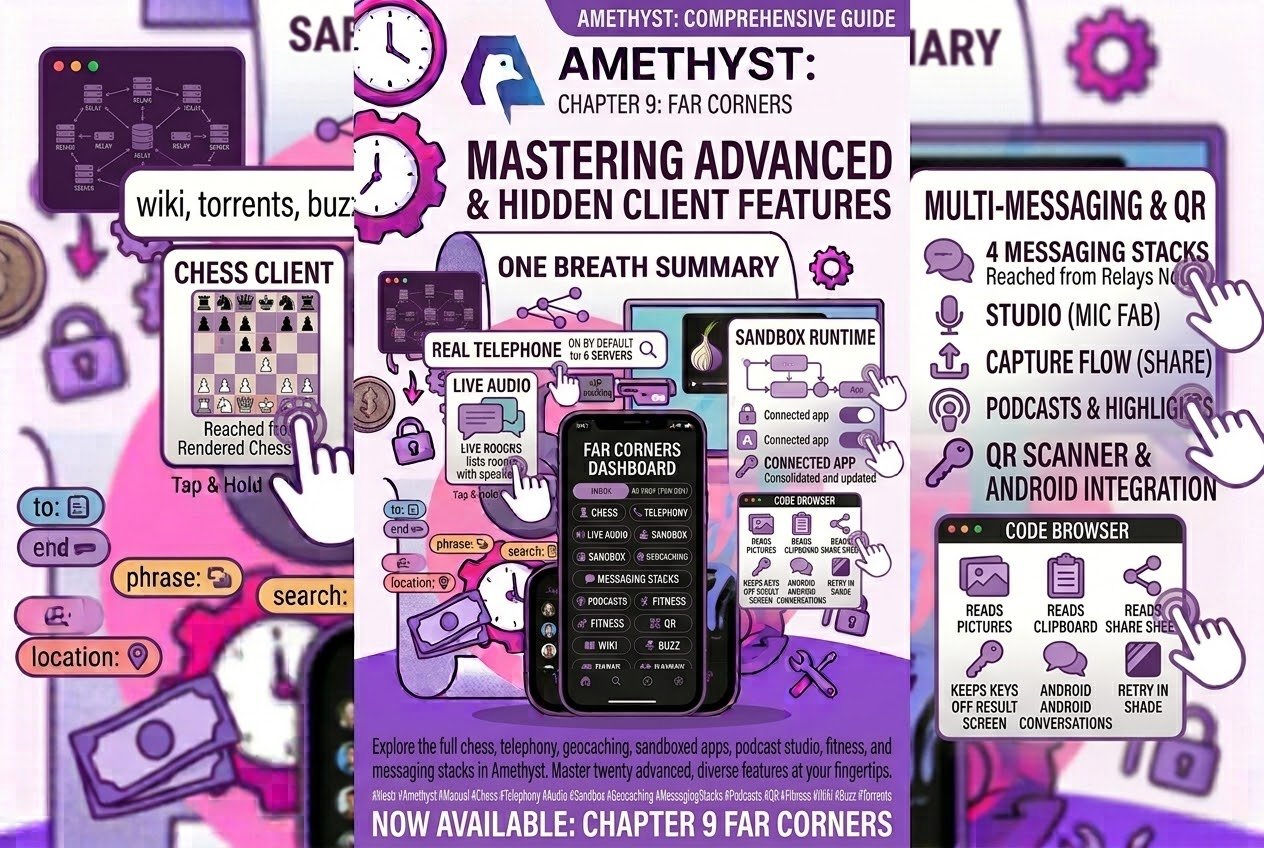
- The whole thing in one breath
There are several apps inside your app
Amethyst is a stack of separate applications sharing one login, one relay layer and one drawer. Some have a row in the drawer, some open from a single icon in a top bar, and some appear the moment a matching note turns up in a feed. This post is the map: for each one, where the door is, what happens when you open it, and how far along it is — so you know what to expect before you spend an evening there.
Each entry below ends with a maturity note, so you know whether you’re looking at something established, something ready to use, or something early.
Everything here is in both builds. The Play/F-Droid differences this series has turned up — casting, translation, the AI helpers, assistant-driven zaps — all live in earlier posts, and none of them is in this one.
Your social app is also a telephone
Amethyst contains a real peer-to-peer phone. A signed offer goes out wrapped in an ephemeral gift wrap, the other side unwraps it and answers, and the media flows directly between the two handsets over WebRTC wherever the network allows it. No calling server holds the session, and group calls work too.
Around that sits a complete call experience: a full-screen incoming-call UI that shows over your lock screen, with ringtone and vibration, plus picture-in-picture, a camera switch, Bluetooth routing, and a proximity sensor that blanks the screen when you lift the phone to your ear — the one motion or proximity sensor the entire app touches.
How you reach it: open a private DM and tap the video-camera or handset icon in the top bar. That is the entrance — there is no separate Calls screen, dialer or call log, and the two icons carry no text label. They appear in rooms of you plus five others or fewer, so a bigger group chat won’t show them. Settings → Call Settings holds quality, bitrate, your own TURN servers, and one master switch.
Two things to know before your next call. Calling is ON by default, and that master switch is the one control for it — off, the buttons disappear and incoming calls are ignored. And every call is set up against six hard-coded ICE servers: two Google STUN, one Cloudflare STUN, and three entries for the third-party open TURN relay openrelay.metered.ca. STUN only learns your address; the TURN relay carries your actual audio and video whenever a direct connection can’t be made. Call Settings lists all six under “Default servers (always active)”. Add a TURN server of your own and the three openrelay entries are dropped in its favour. The three STUN servers stay in every configuration.
Ready to use — complete since v1.09.0.
And a live audio platform
Drawer → Feeds → Nests opens something Twitter Spaces-shaped: hosts open a room, speakers sit on a stage, everyone else listens and can raise a hand. Live text chat, floating reactions, scheduled rooms, picture-in-picture that follows whoever’s talking, and a full set of host controls. The audio doesn’t go over Nostr — it rides a from-scratch pure-Kotlin QUIC stack speaking moq-lite to a media relay, with the room announced as a NIP-53 event. A second network protocol, inside your Nostr client.
Two gestures to learn on the stage grid. Tap your own avatar to mute your mic while you’re broadcasting — while you’re only listening, a tap on your own tile does nothing. And tap or long-press anyone else for their participant sheet: follow, mute and hush for everybody, promote, demote and kick if you’re the host. The sheet is for other participants, so your own tile never opens it.
To host you need a server on your list. With none, the create button pops a setup dialog whose Use default button adds the public nostrnests server for you and carries straight on to the create sheet — note that this publishes your server list, which other clients can read. Running your own is Settings → Nest servers, which takes both a relay (WebTransport) URL and an auth URL. The reference deployment splits them across hosts, so Amethyst asks for each rather than deriving one from the other.
One thing to know when the directory looks quiet: it lists only rooms with fresh on-stage presence, so a room whose event still says it’s live but has nobody on stage doesn’t appear. An empty Nests screen means no room currently passes that check, not that the network is empty.
Ready to use. Listening works out of the box; hosting is one dialog away.
And an app runtime, and a verifiable web
Drawer → Feeds → nApplets is a directory of mini-apps. A napplet is a signed manifest pointing at web-app blobs on Blossom; Amethyst downloads each blob, checks its hash against the signature, refuses anything that doesn’t match, and runs the result in a locked-down WebView that can ask your key to sign things.
The security model is the serious part. The sandbox runs in a separate Android process holding no account and no keys — a signing request crosses to the main process, which is where the key actually lives, and the two halves talk only over IPC, never a shared object in memory. Permissions are a real ledger at Settings → Connected Apps: a trust level per app, per-operation Allow/Ask/Deny overrides, and a “Forget this app” that revokes the live in-memory session too, so it takes effect immediately rather than at next launch.
Drawer → Feeds → nSites is the same idea pointed at static websites: a signed manifest, every file hash-verified before it’s served, opened full-screen from each row’s Open button. With Tor on, each site gets its own onion/globe toggle, and Tor is the default for nSites.
Both ready to use. Both default to Global.
And a code browser that isn’t reading Nostr
Open Drawer → Feeds → Git Repositories and tap a repository card: a project dashboard with stats, languages and last commit, plus a code browser — file tree, syntax-highlighted viewer, branch and tag switching, file search, commit history. Issues split open and closed, and pull requests rendered as computed, word-level diffs. You can file an issue and review a PR.
The thing to know: the browser fetches over plain HTTPS from the repository’s clone URL. It is not reading code off Nostr — so a repo announcement with no http(s) clone URL gets a “Hosted externally” card instead, and there’s nothing to browse.
Established for reading; authoring covers filing issues and reviewing PRs. The feed defaults to Global and shows up to 200 repositories, so it’s a sample of the network rather than a full catalogue — a specific repository may fall outside that cap.
And a geocaching game
Drawer → Feeds → Geocaches (new in v1.17.0) is a hub of five tabs — Nearby, Map, Hunts, Finds, Mine — and the Cache hunts row beside it opens the same screen on the Hunts tab; both are pinnable to the bottom bar. Hide a cache from the + FAB or by long-pressing a spot on the map, log finds from a cache’s detail screen, and build a hunt from a cache’s Add to a hunt. Like Marketplace, the hub defaults to Around Me, so switch the spinner to Global if Nearby looks quiet.
The hook: a cache can carry a printed secret. The owner sees it once, as a QR in the composer — Amethyst never stores it — and prints it for the box. A finder scans it from the I found it composer, the key signs a single proof of presence and is dropped, and the log carries a Verified find badge. Post twelve, Hide something, sign it, let strangers find it, walks the whole thing.
New in v1.17.0, in both builds.
Four more messaging stacks, three of them encrypted
Beyond ordinary DMs there are four, and they have a post of their own — post ten, Four ways to talk in private, which has the invitations, the moderation tools, the key handling and the catches for each. This is the roll call. The encrypted ones are explained side by side, with their trade-offs, in the Start a conversation chooser on the Messages FAB; Buzz is reached by invite instead.
- Concord — a Discord-shaped community, end-to-end encrypted throughout: channels, roles, invite links, moderation. Reached from Messages, grouped by community. Ready to use; young and moving fast.
- Marmot — group chat on MLS, the IETF messaging-security standard, interoperable with other Marmot clients. Messages → FAB → Start a conversation → Marmot Group, plus a Drawer → Feeds → Marmot Groups row since v1.17.0. Ready to use.
- Cordn — MLS groups again, but ordered by a coordinator you choose instead of by relays. Messages → FAB → Start a conversation → Cordn Group, or Drawer → Feeds → Cordn Groups. New in v1.17.0.
- Buzz — a workspace where humans and AI agents share one relay, deliberately plaintext so the relay can search and audit it. The way in is a Buzz invite link. Early and experimental.
The publishing suites
- Podcasts — Drawer → Feeds → Podcasts (shows) and Episodes. Inline player with chapters, a transcript, soundbites, and value-for-value Lightning splits (post five, on money, has how the metering works). Authoring — shows, episodes, trailers, split editor — is behind the microphone FAB on the shows screen; the Episodes feed doesn’t offer it, so head to Podcasts to publish. Ready to use.
- Calendars — Drawer → Feeds → Calendars, with an adjacent Calendar lists row for collections: Feed, Month, Week and Day modes (swipe sideways to change date), RSVPs, adding an event to your phone’s own calendar, sharing one as ICS. Reminders are set at Settings → Calendar reminders rather than from the calendar screens, and are stored per device, not per account, so every account on the phone shares them. Established.
- Music — Drawer → Feeds → Music and Playlists, with composers and a full-screen playlist editor. It runs on experimental, unratified event kinds that very few people publish yet, so expect both feeds to be empty for now. Early and experimental.
A fitness tracker, read-only by design
Drawer → Feeds → Workouts is a feed of published workout records with a manual composer. Drawer → You → My Fitness, new in v1.16.0, is the dashboard on top: this week against last, weekly averages, a breakdown by activity, best efforts, active days, a day streak.
It reads two sources, Health Connect and the workouts you’ve published, and needs neither — with no health permissions it runs off your published events, with nothing published it runs off Health Connect. Where a session appears in both, the Health Connect copy wins, because that one carries heart rate, steps and climb.
Because it’s health data, the boundaries are worth stating plainly: My Fitness is strictly read-only. It never writes to Health Connect, never reads in the background, never asks for route or location, and the dashboard only ever looks at the last four weeks.
Established — new in v1.16.0, self-contained, and works with either source missing.
The marketplace, the app store, other people’s algorithms
- Classifieds — Drawer → Feeds → Marketplace, or Discover → Marketplace. Browse, list your own, and chat with a seller with the product attached to your first message. The drawer screen defaults to “Around Me” (Geocaches is the only other feed that does), which needs location permission and the app in the foreground; without those the screen shows no listings. To see listings right away, switch the top-bar filter to Global, or use the Discover tab, which already defaults to Global. Ready to use.
- App Store — Drawer → Feeds → App Store, a directory of applications published to Nostr. It’s filtered by your feed filter and your mute filter, so if it comes up empty, check both. Early and experimental.
- Feed algorithms (DVMs) — other people’s servers run a discovery job and hand back a feed, so the algorithm becomes a thing you choose. Drawer → Navigate → Discover → Feed Algorithms; star one and it becomes a chip in the Home feed switcher and a row at Drawer → You → Favorite Feed Algorithms. Opening one publishes a request and waits for the result, so an empty feed may still be in flight — and your own inbox relays are the return address, so keep that list accurate for the answer to arrive. Ready to use.
The small, focused ones
- Badges — Drawer → Feeds → Badges; your own awards at Settings → Profile badges, or your profile → the badge strip → gear. You can create, grant and manage — badges have been writable since v1.09.0 — and the award composer opens by tapping a rendered badge note rather than from a menu. Awards default to off until you accept them, and the accept switch becomes active once that badge’s definition loads. Ready to use.
- Emoji packs — Drawer → You → My Emoji Packs manages yours and your subscriptions; Drawer → Feeds → Emojis browses other people’s. Two rows in two drawer sections, each with its own screen. Established.
- Follow packs — Discover → Follow Packs or Drawer → Feeds → Follow Packs; build your own under Drawer → You → My Lists. A pack is a feed filter, not a bulk import, and has no private members. Ready to use.
- Hashtag sets — Drawer → You → Hashtag Sets: named buckets of hashtags, public or private. Once you’ve built one, it becomes a selectable feed in the top-bar switcher — look for its chip there. Established.
- Web bookmarks — Drawer → You → Web Bookmarks, a private read-later list for ordinary web links, separate from note bookmarks. The edit dialog fetches OpenGraph metadata, so saving one pings that site. Established.
- Highlights — Drawer → Feeds → Highlights, plus a note’s 3-dot → Highlight. The capture flow for text from other apps lives in their share sheets; post four, on composing, has it. Established.
Rendered inline, from any feed
- Torrents — no screen, route or drawer row of their own. Cards render inline when one turns up in a feed, and the “Torrents” switch among the Home content-type toggles controls whether they appear. The download icon hands the link to an external torrent app; if that hand-off fails, Amethyst shows a toast. Early and experimental.
- Wiki — likewise no screen of its own. Pages render readably when one appears, with merge requests and acceptances. On Android, wiki is for reading: there is no wiki composer, so you cannot create, edit or fork a page from Android. Fork lives in the boost popup and is offered on plain text notes only — the same as for articles. Early and experimental.
A QR scanner that reads more than the camera
Since v1.17.0 every Scan in the app opens one rebuilt scanner: a full-screen camera view that decodes the whole frame, not just the box inside the corner brackets, and reads QR, Micro QR and rMQR codes — no linear barcodes. Post one, on gestures, has tap-to-focus, pinch zoom and the torch; this is where it opens from and what it accepts.
Where it opens from. The general-purpose entrance is your own QR screen — the QR icon in the drawer footer or on a profile header — and its Scan QR button, which navigates to whatever it reads: a profile, a note, a relay, a nostr: link, a nostrconnect:// code that pairs an app with your signer. Two more entrances are new. Long-press the Amethyst icon on your launcher for a Scan QR shortcut that opens straight into the camera; closing the scanner from there lands on your own npub QR screen rather than where you were. And share a single image to Amethyst from any app and pick Scan QR code: the picture is decoded and you’re taken where it points, with no camera unless the image holds no code. Sharing text goes to the composer, and a multi-image share doesn’t list the target. The field-specific QR buttons — Login with QR Code on the login key field, Scan a code on the NIP-46 signer screen, the QR icon when adding an NWC or Clink wallet, Cordn’s Link and Migrate screens, a geocache’s find composer — use the same scanner but hand the raw text back to the screen that asked. No scanner on the payment screens (they only show a QR), and none in Search.
Pictures and the clipboard. The bottom row has Scan a picture, which opens the system photo picker, and Paste, which reads the clipboard: an image is decoded like a picked picture, text is submitted as if it had been scanned — so pasting an npub navigates exactly like scanning one — and image wins when both are present. Nothing found gives a three-second notice and the camera stays up. Both buttons live on the camera screen, so the camera permission comes first; that permission screen says what happens to the frames: decoded on the device and discarded, never recorded or uploaded.
Several codes at once. With more than one code in view nothing is accepted automatically: each is outlined and the hint reads Tap the code you want. A picture with several codes opens a chooser sheet of the same name, listing each by kind — Profile, Note, Relay, Lightning invoice, Web link — with a two-line preview. A payload split across several physical codes (ISO Structured Append) is stitched together as the camera sees each part, with “Captured 2 of 5 parts — keep going” in the hint pill; parts time out after 30 seconds, and only the live camera accumulates — a picture holding one part reads as a single code.
A code it can’t open explains itself. The camera stays up and a sheet titled Amethyst can’t open this code says what it was and what to do: a private key (“Paste it on the login screen instead”), a wallet connection (“Add it from Wallet settings”), a bunker:// address, a Lightning invoice, a Cashu token, a web link, plain text, or a Nostr code this screen has no route for. Buttons: Open link (web links, opened externally), Copy and Scan again. A plain https:// link always lands here, with Open link ready; a bare 64-character hex pubkey opens the profile.
Secrets stay off the screen. Anything carrying a private key or a pairing secret — nsec, ncryptsec, nostrconnect://, bunker://, wallet-connect strings, Cashu tokens — is shown by kind only, with no preview and no Copy button: “This code carries a private key or a pairing secret, so its contents are not shown here.” A damaged nsec1… still counts as a private key rather than falling through to plain text, and a routing-failure log line records the kind and character count, never the text.
Two smaller things. Showing your own npub QR now pins the screen to full brightness and keeps it awake, as Share as QR already did; the other QR dialogs (Backup Keys, wallet Receive, invites) don’t. And the scanner, camera library and decoder all sit in the main build, so F-Droid and Play have the identical scanner.
Ready to use — rebuilt in v1.17.0.
Four pieces of background infrastructure
- Messages as Android conversations — since v1.17.0, notifications for NIP-17 DMs, Marmot groups and Buzz DM rooms are filed under Android’s Conversations (Android 11 and later): long-press one in the shade for per-chat priority, silence and bubble controls, manage them under system Settings → Notifications → Conversations, and each chat gets a launcher entry when you long-press the app icon. The gate is Settings → Notifications → Show Messages, on by default; off, DM and Marmot notifications fall back to ordinary alerts and Buzz DM notifications are not posted at all. Public replies, Concord, Cordn, NIP-29 and public chats stay ordinary notifications; the launcher entries are removed at logout. Ready to use.
- Replying from the shade — the reply shows its progress in the notification: the text joins the thread with “Sending…”, the marker clears on success, and a failure becomes “Not sent” with a Retry that re-sends what you typed. A send still running after 8 seconds reads “Still sending…” with no Retry — it may have gone out, so open the app and check. Inline reply covers NIP-17 DMs, Marmot groups and public replies; NIP-04 DMs are read-only in the tray and Buzz rooms have no reply action. Ready to use.
- OpenTimestamps — a note’s 3-dot → “Timestamp it” submits it for a Bitcoin-chain attestation, so anyone can later prove the note existed at that moment; settings at Settings → Bitcoin Explorer (OTS). Post two, on menus, has the details; post seven, on privacy and safety, has the Tor toggle, which also changes which explorer does the verifying. Established.
- Namecoin identity — Settings → Namecoin Settings resolves
.bitnames as NIP-05 identifiers, via public ElectrumX servers or your own node, with certificate pinning and per-server diagnostics. It shows up in profile verification, search, on-chain zaps, and the Import Follow List field, which acceptsalice@example.bit. Resolution is on by default, so lookups reach third-party servers unless you turn it off — the screen carries its own leak warning about exactly that. Established.
The whole thing in one breath
A full chess client, reached from a rendered chess note. A real telephone behind two icons in a DM, on by default, negotiated against six servers that ship with the app. A live audio platform that lists only rooms with someone on stage. A sandboxed app runtime in its own keyless process, with a permission ledger at Settings → Connected Apps. A code browser fetching over HTTPS instead of Nostr. A geocaching hub whose verified finds are signed by the secret in the box. Four messaging stacks beyond DMs, with a post of their own. Podcasts have a studio behind one mic FAB; highlights have a capture flow in other apps’ share sheets; My Fitness reads your health data and never writes anything back. A QR scanner that reads pictures, the clipboard and the share sheet, and keeps private keys off its result screen; your DMs filed under Android’s Conversations, with Retry in the shade. Wiki is read-only, torrents are render-only, music is waiting for publishers, and Buzz opens with an invite link.
Three posts to go: group chat, the in-app browser, and a game you play with a QR code in a box. Until then, open the drawer and tap a row you have never opened.
Describes Amethyst for Android v1.17.0. Updated 2026-10-08. This post is republished as each part goes out, so the links below fill in over time. Bookmark it and come back.
Start here: the Amethyst manual
Write a comment